Showing posts with label Hacking. Show all posts
Sunday, February 2, 2014
Friday, January 10, 2014
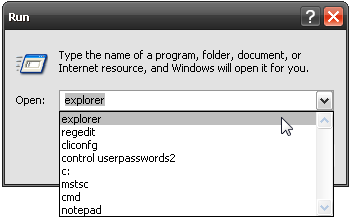
Clear Recent Commands From the Run Dialog
1. First open Windows + R to Run Prompt, here place that you want to erase.

2. Type Regedit and Enter
3. see the picture, and delete it what you do not want to see, don't forget to change MRUList too.
Completely Clear Recent Run Dialog Entries
Right-click on the taskbar and choose Properties, then choose Start Menu.
Select the “Classic Start menu” option, and choose the Customize button. (Don’t worry, we’ll cancel out of the dialogs so you can keep the XP menu style)
Now just click the Clear button to remove all of the recent documents and applications from the start menu
Once you’ve done that, hit Cancel and then Cancel again to make sure you don’t switch to the Classic Start menu.
Wednesday, April 3, 2013
Registry REGEDIT Run Command URL Link
Registry For File Explorer when you run in command run :
HKEY_CURRENT_USER>>Software>>Microsoft>>Windows>>CurrentVersion\Explorer\TypedPaths
Then
Choose your URL, you can be modified and update even delete it as you want !
HKEY_CURRENT_USER>>Software>>Microsoft>>Windows>>CurrentVersion\Explorer\TypedPaths
Then
Choose your URL, you can be modified and update even delete it as you want !
Thursday, October 27, 2011
Change Text Wellcome Screen Windows
How to Change Text Wellcome Screen Windows
Follow this step :
1. Download an aplication "Resource Hacker" on http://www.angusj.com/resourcehacker/
2. Download an application "Replacer" on http://www3.telus.net/_/replacer/
3. Execute "Resouce Hacker" and Install it
4. Open "Resouce Hacker Application"
5. Open File "c:\windows\system32\logonui.exe" in the resource editor
6. Save File
7. open "Replacer Application"
8. Drag the File for replace in "Replacer Application"
9. Reboot System and tralaaa.... Done!
Follow this step :
1. Download an aplication "Resource Hacker" on http://www.angusj.com/resourcehacker/
2. Download an application "Replacer" on http://www3.telus.net/_/replacer/
3. Execute "Resouce Hacker" and Install it
4. Open "Resouce Hacker Application"
5. Open File "c:\windows\system32\logonui.exe" in the resource editor
6. Save File
7. open "Replacer Application"
8. Drag the File for replace in "Replacer Application"
9. Reboot System and tralaaa.... Done!
Hidding Your Drive in Windows 7 or Windows Vista
Lets Hide Drives from Your Explorer :
This tip will only hide the drive from being displayed, applications and the command prompt will still have access to it, and you can still manually browse to the folder if you type in the path.
Configure the Hidden Drives
Open up regedit.exe by using the start menu search box, and then browse down to the following key.
HKEY_CURRENT_USER\Software\Microsoft\Windows\CurrentVersion\Policies\Explorer
If the Explorer key does not exist, you can right-click on Policies, select New Key and name it Explorer.
The NoDrives key most likely does not exist by default, so you’ll need to create it with right-click \ new 32-bit DWORD and name it NoDrives.
This value is a 32 bit number, and the bits are arranged in reverse order with a value of 1 hiding that drive. For example, if we wanted to hide drives A: and F: we would arrange it like this:
Converting 100001 to decimal we end up with a decimal value of 33 or a hex value of 0×21, so if you double-click on the key in the registry editor, choose Decimal and then enter 33 into the value field.
In order to see these changes, you’ll need to restart explorer.exe, which you can do easily from Task Manager or the longer way by just logging off and back on.
Uninstall Tweak
To disable this tweak, simply remove the NoDrives registry key entirely.
Reference Info
Here’s a list of the values you’ll want to enter for a few different drive letters.
If you want to hide multiple drives, you’ll need to use the table of all the drive letters to figure out the correct binary code, and then convert that to decimal or hex. (hint: you can use the calculator in scientific mode)
Look, now that worthless floppy drive is gone!
Naturally it would be better to disable the floppy drive in your BIOS, but this tip is still valid for other types of drives.
Note that this also works on Windows XP.
This tip will only hide the drive from being displayed, applications and the command prompt will still have access to it, and you can still manually browse to the folder if you type in the path.
Configure the Hidden Drives
Open up regedit.exe by using the start menu search box, and then browse down to the following key.
HKEY_CURRENT_USER\Software\Microsoft\Windows\CurrentVersion\Policies\Explorer
If the Explorer key does not exist, you can right-click on Policies, select New Key and name it Explorer.
The NoDrives key most likely does not exist by default, so you’ll need to create it with right-click \ new 32-bit DWORD and name it NoDrives.
This value is a 32 bit number, and the bits are arranged in reverse order with a value of 1 hiding that drive. For example, if we wanted to hide drives A: and F: we would arrange it like this:
Converting 100001 to decimal we end up with a decimal value of 33 or a hex value of 0×21, so if you double-click on the key in the registry editor, choose Decimal and then enter 33 into the value field.
In order to see these changes, you’ll need to restart explorer.exe, which you can do easily from Task Manager or the longer way by just logging off and back on.
Uninstall Tweak
To disable this tweak, simply remove the NoDrives registry key entirely.
Reference Info
Here’s a list of the values you’ll want to enter for a few different drive letters.
If you want to hide multiple drives, you’ll need to use the table of all the drive letters to figure out the correct binary code, and then convert that to decimal or hex. (hint: you can use the calculator in scientific mode)
Look, now that worthless floppy drive is gone!
Naturally it would be better to disable the floppy drive in your BIOS, but this tip is still valid for other types of drives.
Note that this also works on Windows XP.
How to Change Windows XP welcome screen
CHANGE YOUR WELLCOME SCREEN BY YOUR SELF
Start > RUN > type in the following > REGEDIT
1) Navigate to:
HKEY USERS\ .DEFAULT\Control Panel\Desktop
2) Double click the wallpaper value, and type in the full path of your image and the filename.
3) To tile the image set "TileWallPaper" to 1
4) To Stretch the wallpaper set "WallPaperStyle" to 2
5) Close the registry editor and the changes will take place when you Log off.
Start > RUN > type in the following > REGEDIT
1) Navigate to:
HKEY USERS\ .DEFAULT\Control Panel\Desktop
2) Double click the wallpaper value, and type in the full path of your image and the filename.
3) To tile the image set "TileWallPaper" to 1
4) To Stretch the wallpaper set "WallPaperStyle" to 2
5) Close the registry editor and the changes will take place when you Log off.